
View a CBCT on your computer, nothing to install
To view a dental CBCT scan on your computer you do not need the scanner software: a DICOM viewer is enough. tresD DICOM runs in the browser, on Windows, Mac and Linux, it is free and it never uploads the study anywhere.
Open my CBCT nowFree · nothing to install · your files never leave your computer
Which software to use
- The viewer on the CD: it is free, but it is usually Windows-only, it sometimes will not start and it changes with every brand.
- The manufacturer's software: it has to be installed, almost always on Windows only, and it is designed for its own scanner.
- A DICOM viewer in the browser, such as tresD DICOM: nothing to install, it works on Windows, Mac and Linux, it opens CBCTs of any brand that exports standard DICOM and the files never leave your computer.
What you can see
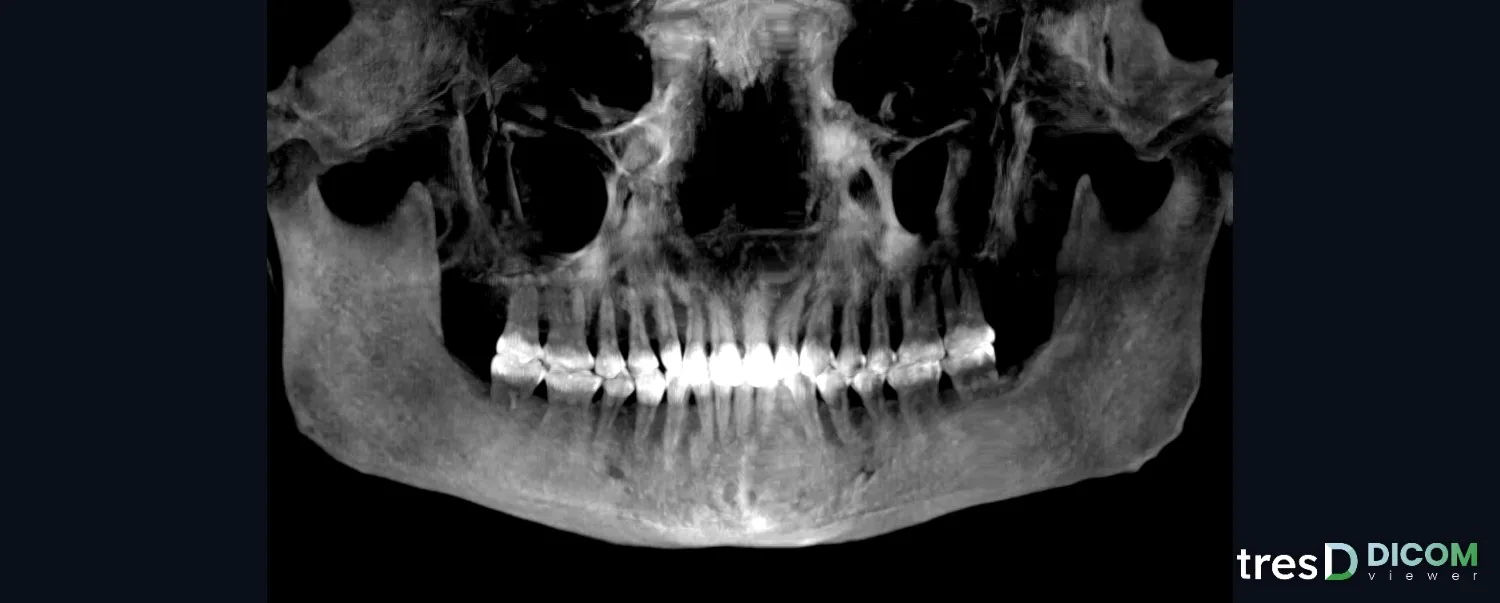
The axial, coronal and sagittal slices; the 3D render; the panoramic with the slices of each tooth; the TMJ; the airway; and measurements of distances and angles. All measurements are indicative.
What you need
- An up-to-date Chrome, Edge, Safari or Firefox (Chrome or Edge preferred).
- 8 GB of memory for a normal CBCT and 16 GB for a large field of view.
- The CBCT folder on your computer: copied from the CD or USB stick, or downloaded (a ZIP works too).
Step by step
Have the CBCT on your computer
Copy the folder from the CD or USB stick to the desktop, or download the study if you got a link. If it is in iCloud, Dropbox, OneDrive or Google Drive, download it first.
Open tresD DICOM
Go to tresddicom.com/app. No sign-up and nothing to install.
Open the folder or the ZIP
Click «DICOM folder» and choose the CBCT folder, or «ZIP / RAR» if it is compressed. You can also drag it onto the window.
Look at the slices and the 3D
The slices appear within seconds, while it loads, and then the 3D render. The viewer Help (? button) explains every tool with its video.
If it does not open
A white flash, or the CBCT does not show
It is usually the graphics card: accept the low-memory mode the viewer offers and, if it fails again, turn off graphics acceleration in the browser and restart it.
The browser runs out of memory
Close the other tabs and the programs you are not using and open it again. A large field-of-view CBCT needs 16 GB of memory.
It cannot find DICOM images
You chose the folder of the viewer program or a loose file. Choose the folder with the images, the one that contains the DICOMDIR: how to open the CD.
If the CBCT comes from a specific scanner
Each brand exports and writes the CBCT in its own way. The guides by scanner explain which folder to choose for Carestream, Planmeca, Morita, Vatech, NewTom, Sirona, i-CAT, Acteon, KaVo, Gendex, Soredex and Owandy, and how to open a hospital CT scan CD or DCM files and DICOMDIR.
Common questions
Is there free software to view dental CBCT scans?
Yes: tresD DICOM is free, with no sign-up and no limit on studies, and it runs in the browser, so there is nothing to install.
Does it work on Windows 11 and on a Mac?
Yes, on Windows, Mac and Linux, with Chrome, Edge, Safari or Firefox. On iPad and phones the CBCT is opened from a ZIP: this is how.
Can I see the scan in 3D?
Yes: the 3D render appears when loading finishes, and you can rotate and zoom it.
Does it work with any brand of scanner?
If the scanner exports standard DICOM, yes, whatever the brand.
Is the CBCT uploaded to a server?
No. It is read and processed on your computer.
Other guides
Try it with your CBCT
Free, no sign-up and nothing to install. Your files never leave your computer.
Open my CBCT now