
Open the CD of a dental CBCT scan
A dental CBCT scan usually comes on a CD or USB stick with the images in DICOM and a Windows viewer. If that viewer will not start, if you have a Mac or if your computer has no CD drive, tresD DICOM opens it in your browser, with nothing to install and without uploading it anywhere.
Open my CBCT nowFree · nothing to install · your files never leave your computer
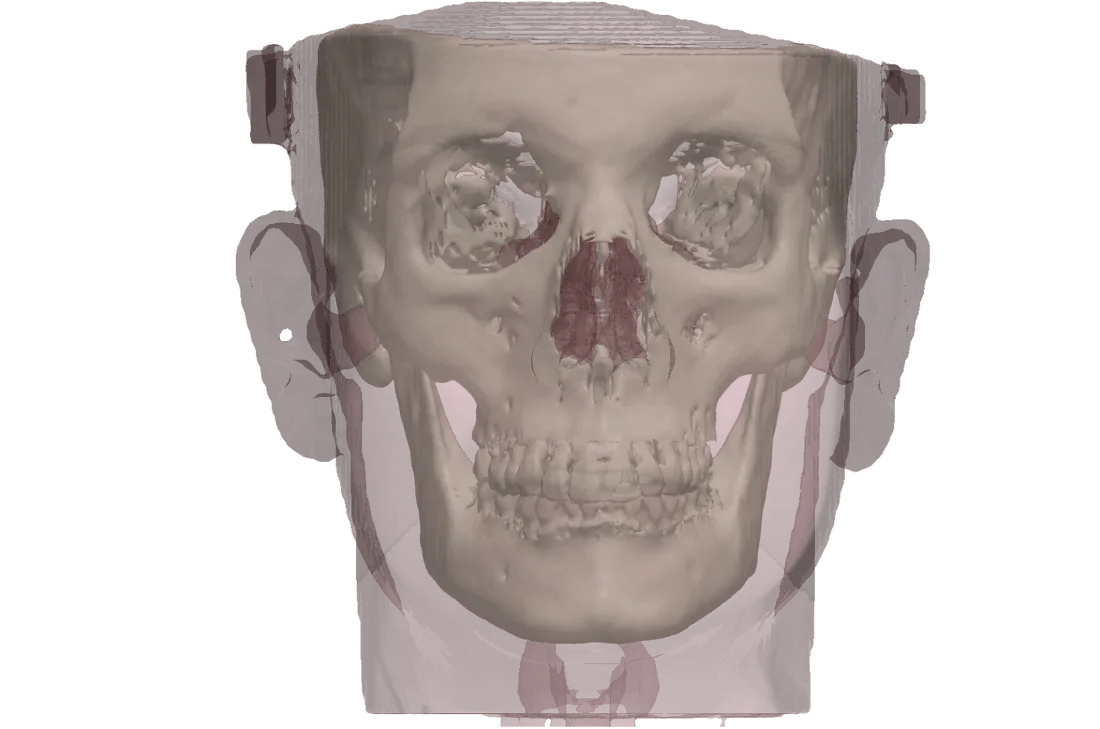
What is on the disc
Each manufacturer writes the disc in its own way, and the viewer changes with the brand of the scanner. There is a guide for each scanner (Carestream, Planmeca, Sirona, Vatech, NewTom, Morita and more) with the exact folder to choose.
Why the disc does not just open
- The viewer does not always start: Windows no longer opens the disc by itself, so you have to find the program inside it, and some ask for administrator rights or old components.
- The viewer is a Windows program (
.exe): it does not work on a Mac. - Many computers no longer have a CD drive: you need an external USB drive, or to ask for the study on a USB stick or as a download.
The images on the disc, on the other hand, are standard DICOM: copy them to your computer and open them in a DICOM viewer, whatever the brand of the scanner.
Step by step
Insert the CD or USB stick
If your computer has no CD drive, use an external USB one or ask the imaging centre for the study on a USB stick or as a download, in DICOM.
Copy everything into a folder
Copy the whole content of the disc into a folder, for example on the desktop. Reading straight from the CD is slow and can fail halfway through loading. There is no need to open the disc viewer.
Open tresD DICOM
Go to tresddicom.com/app in Chrome, Edge, Safari or Firefox. No sign-up and nothing to install.
Choose the folder
Click «DICOM folder» and choose the folder where you copied the disc, the one that contains the DICOMDIR (you can also drag it onto the window). tresD DICOM finds the images and leaves the viewer out.
If it does not open
«This is not the CBCT» appears
You chose the folder of the viewer program (almost all .dll and .exe files) or a loose file. Choose the folder that contains the DICOMDIR or the images.
«The rest of the CD is missing» appears
You chose only the DICOMDIR, which is the index. Choose the whole folder that contains it.
It says it cannot find DICOM images
Some discs hold the study only in their viewer format or as JPEG pictures. Ask the imaging centre for a copy of the scan in DICOM.
It is a panoramic, not a CBCT
If the disc only holds a 2D X-ray (panoramic or cephalogram), there is no volume to see in 3D: open it with the viewer on the disc.
What you can see
With the scan open you see the axial, coronal and sagittal slices, the 3D render of the bone and the skin, the panoramic with the slices of each tooth and the TMJ, and you can measure distances and angles (indicative measurements). On a Mac, see also how to open a CBCT on a Mac; if the disc is a hospital CT scan, this other guide.
Common questions
What software do I need to view a dental CBCT scan?
None: tresD DICOM runs in the browser (Chrome, Edge, Safari or Firefox), on Windows, Mac and Linux. You only have to open the folder of the disc.
Can I view it on a Mac?
Yes. The CD viewer is usually Windows-only, but the images are DICOM and tresD DICOM opens them in Safari or Chrome. Mac guide.
What if my computer has no CD drive?
Use an external USB drive or ask the imaging centre for the study on a USB stick or as a download, in DICOM.
Is the scan uploaded to the internet?
No. The files are read and processed on your computer; they are not sent to any server.
Is it free?
Yes: no sign-up, no licences and no limit on studies.
Other guides
Try it with your CBCT
Free, no sign-up and nothing to install. Your files never leave your computer.
Open my CBCT now