
Open a NewTom CBCT with nothing to install
NewTom CBCTs (GO, VGi evo, Giano) are exported from NNT as a folder with hundreds of DICOM files, or burned to a CD with the NNT Viewer. tresD DICOM opens the DICOM in your browser, also on a Mac, with nothing to install and without uploading the study anywhere.
Open my CBCT nowFree · nothing to install · your files never leave your computer
How a NewTom CBCT can reach you
DICOM folder
Exported from NNT with File → Save in DICOM format → Sequence of Axial images: hundreds of files, one per slice. Sometimes they have no .dcm extension; it does not matter, tresD DICOM recognises the images by their content.
CD with the NNT Viewer
The disc starts the NewTom viewer with «RunNNTViewer». Try choosing the whole CD folder; if no DICOM image shows up, see the second problem below.
Step by step
Copy the folder to your computer
If you received it on a CD or USB stick, copy the whole folder, for example to the desktop. Reading straight from the CD is slow and can fail halfway through loading.
Open tresD DICOM
Go to tresddicom.com/app with Chrome, Edge, Safari or Firefox. No sign-up and nothing to install.
Choose the whole folder
Click «📁 DICOM folder» and choose the study folder. You can also drag it onto the window. If you received it as a ZIP or RAR, use the button next to it: no need to unzip it.
Wait for it to load
Slices appear while the files arrive. If the volume does not fit in the graphics card, it is reduced automatically; the panoramic, the TMJ and the cross-sections per tooth are read at the original resolution.
If it does not open
«This is not the CBCT» appears
You chose the program folder or a stray file. Open again and choose the folder with the slices.
It says it cannot find DICOM images
Then the CD holds the study only in the NNT Viewer format. It has to be converted to DICOM once: open the disc on a Windows PC with «RunNNTViewer», double-click the patient and use File → Save Axial Images in DICOM format → Free Matrix, into a new folder. If it asks at the end, click «No» to get one file per slice. From NNT it is File → Save in DICOM format → Sequence of Axial images → 512x512 Matrix (or «Free Matrix»).
«tresD DICOM opens CBCT and CT» appears
What you opened is a 2D radiograph (a panoramic or a cephalogram), not the volume. You need the export of the axial slices.
What you can do next
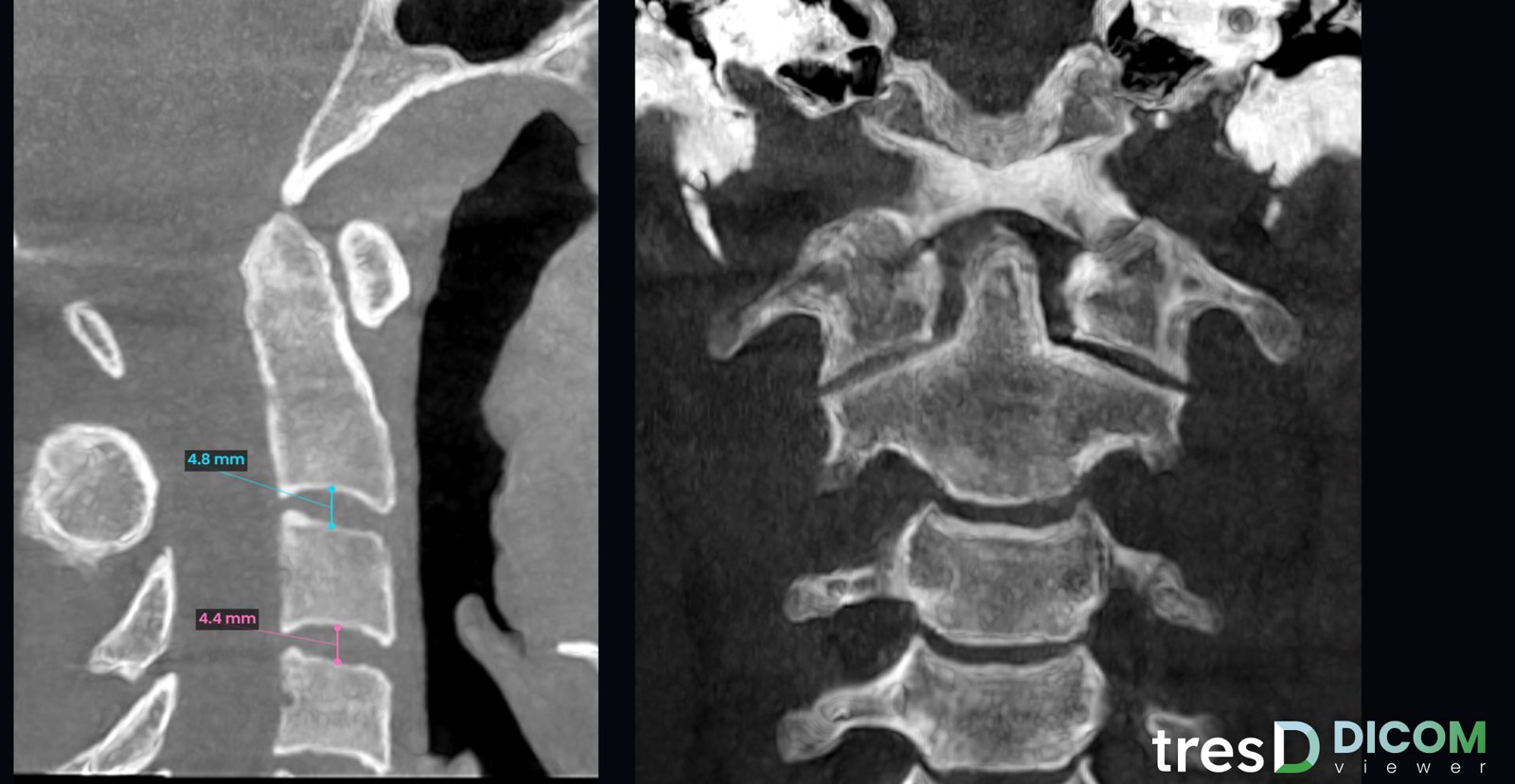
With the CBCT open you have the axial, coronal and sagittal slices, the 3D render, the panoramic, cross-sections per tooth, the TMJ, the airway, the cervical vertebrae, the simulated cephalogram and the superimposition of two CBCTs of the same patient, plus a PDF report. All measurements are indicative. See all features.
Common questions
Do I need NNT or the NNT Viewer?
Not to view the DICOM folder: tresD DICOM opens it directly in the browser, on Windows, Mac and Linux. Only if the CD has no DICOM do you need the NNT Viewer once, to export it.
512 × 512 or «Free Matrix»?
Both work: tresD DICOM opens slices of any size.
Does it work on a Mac?
Yes, in Safari, Chrome, Edge or Firefox, without Parallels or Windows. See also the Mac guide.
Is the CBCT uploaded to the internet?
No. The files are read and processed on your own computer; they are not sent to any server.
Is it free?
Yes: no sign-up, no licences and no limit on studies.
Other guides
Try it with your CBCT
Free, no sign-up and nothing to install. Your files never leave your computer.
Open my CBCT now