
Superimposition of two CBCTs, without landmarks
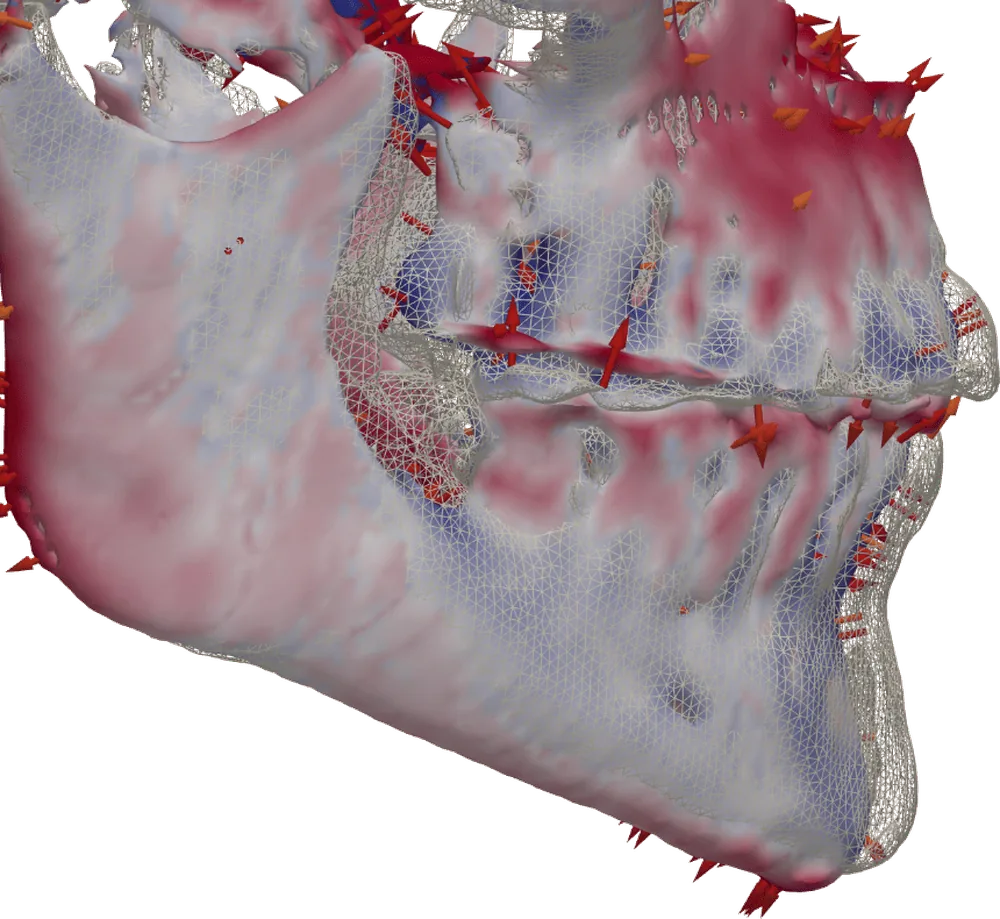
Open the initial CBCT, choose the reference area and add the final one: tresD DICOM superimposes them on its own, matching the bone of an area that has not changed. A colour map shows how much and in which direction each area has moved, in millimetres.
Open my CBCT nowFree · nothing to install · your files never leave your computer
How it works
The superimposition is automatic: there are no cephalometric landmarks to place. The viewer looks for the rotation and translation that best match the bone of the reference area you choose:
- Cranial base: to see growth and the overall changes of a treatment.
- Maxilla: to see how the mandible has moved relative to it.
- Mandible: to see the changes of the maxilla relative to it.
It also works between different machines (for example, a hospital CT scan and a CBCT), with the head at a different height and with small field of view CBCTs. The status bar tells you how well the bone matched; if it is low, you can refine it, superimpose again with another area or align by points.
What you see afterwards
- On the slices, T0 in green and T1 in magenta on top: what matches looks light and what changed is coloured.
- In 3D, the T1 surface coloured with the difference in millimetres (blue, moved back; white, unchanged; red, moved forward) and displacement arrows.
- Movement of the mandible and the maxilla relative to the cranial base: rotation and displacement of the chin and ANS in millimetres.
- T0 / T1 tracing: the two lateral cephalograms blended in green and magenta.
- T0 | T1 side by side, a transition from one study to the other and a downloadable morphing video.
- The airway and the tooth slices of both studies, compared.
Everything is indicative and goes into the PDF report.
How to do it
Open the first CBCT (T0)
At tresddicom.com/app, like any study.
Press «Superimpose another CBCT»
In the left panel. Choose the reference area: cranial base, maxilla or mandible.
Choose the folder of the second CBCT (T1)
In a few seconds both studies appear superimposed, with a window showing the steps while it is computed.
Look at the differences
Move the «Blend» slider on the slices and press «See the differences in 3D» for the colour map (you need to segment the T0 bone first).
Get what you need
«📐 Movement relative to the cranial base», «📈 T0 / T1 tracing», «◧ T0 | T1 side by side» or «🎬 T0→T1 morphing video», and into the report with 📌.
Watch it on video
Common questions
Do I need to place landmarks to superimpose?
No. The viewer matches the bone of the reference area you choose. Only if the match is low can you help it with «Align by points».
Does it work with two CBCTs from different machines?
Yes. Also with a hospital CT scan and a CBCT, with the head at a different height or with fields of different sizes, as long as both include the reference area.
Which reference area should I choose?
The cranial base to see growth and the overall changes; the maxilla to see how the mandible has moved; and the mandible to see the changes of the maxilla.
How accurate is it?
It is indicative. The status bar tells you how well the bone matched; if it is low, check the superimposition or try another reference area.
Are the CBCTs uploaded to a server?
No. Both studies are read and superimposed on your computer.
Other features
Try it with your CBCT
Free, no sign-up and nothing to install. Your files never leave your computer.
Open my CBCT now