
Open a Carestream CS 8100 3D CBCT
Carestream CS 8100 3D studies are exported as DICOM and come with the manufacturer's program (CS Imaging). With tresD DICOM you open them in your browser, on Windows, Mac or Linux, without installing that program and without uploading the study anywhere. Here is its data sheet, what each field of view shows and how to open it.
Open my CBCT nowFree · nothing to install · your files never leave your computer
Carestream CS 8100 3D at a glance
| Fields of view (diameter × height) | 4 × 4, 5 × 5, 8 × 5 and 8 × 9 cm |
|---|---|
| Voxel | From 75 µm |
| Time | 3 to 15 s exposure |
| Manufacturer's program | CS Imaging version 8; the CD or USB stick usually carries the CS 3D Imaging viewer, Windows only |
Source: CS 8100 3D Evo Edition brochure, Carestream Dental (2021), checked in November 2026.
What each field of view shows
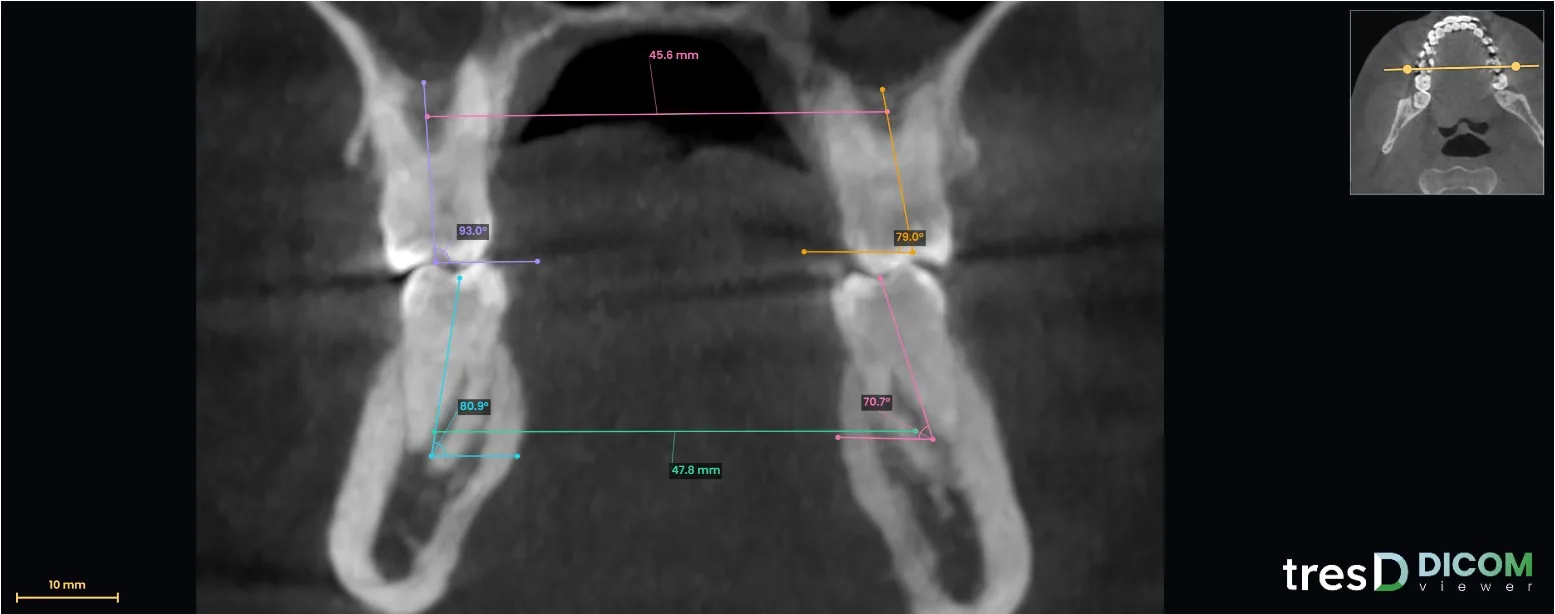
With fields of up to 8 × 9 cm you get one or a few teeth, or the arches: the slices, the 3D render, the panoramic of what is in the field, the tooth-by-tooth sections and the intraoral scans placed on the CBCT. Both TMJs, the whole airway, the vertebrae and the simulated cephalogram need a larger field: if they are not in the scan, tresD DICOM tells you the field is small.
What the manufacturer highlights
According to Carestream Dental, the CS 8100 3D has four selectable fields of view, a low-dose mode comparable to a standard panoramic, metal artefact reduction (CS MAR) with live comparison, noise reduction and an optional cephalometric module.
In tresD DICOM
Carestream usually exports the images losslessly compressed (JPEG Lossless); tresD DICOM opens them just like uncompressed ones.
Step by step
Copy the CD or USB stick to your computer
The whole folder, for example to the desktop. Reading straight from the CD is slow and, with large CBCTs, can fail halfway through.
Open tresD DICOM
Go to tresddicom.com/app in Chrome, Edge, Safari or Firefox. No sign-up and nothing to install.
Choose the whole folder
Click "Upload DICOM folder" and choose the top folder, not the CS Imaging program or the DICOMDIR on its own. If it was sent as a ZIP or RAR, use "Upload ZIP / RAR": no need to unzip it.
Wait for it to load
The slices appear while the files arrive. If the volume is very large, the 3D render is reduced automatically; the panoramic, the TMJ and the tooth-by-tooth sections are read at the original resolution.
If it does not open
It says "This is not the CBCT"
You chose the program folder or a single file (the index, an installer). Open again and choose the top folder.
It finds no DICOM images
The study is only in the program's own format. Ask the clinic or centre to export it as DICOM from CS Imaging.
More about Carestream
What is on a Carestream CD or USB stick and which folder to choose: Carestream guide. With the CBCT open you get the slices, the 3D render, the panoramic, tooth-by-tooth sections, the TMJ, the airway, the simulated cephalogram, the superimposition of two CBCTs and a PDF report. All measurements are indicative. See all features.
Common questions
Do I need CS Imaging or Windows?
No. tresD DICOM runs in the browser, on Windows, Mac and Linux, and also on iPad with the study in a ZIP.
Is it shown at the CS 8100 3D's resolution?
Yes. The slices are read as they come; with very large volumes only the 3D render is reduced, and the panoramic, the TMJ and the tooth-by-tooth sections use the original resolution.
Is the CBCT uploaded to the internet?
No. The files are read and processed on your own computer; they are not sent to any server.
Is it free?
Yes: no sign-up, no licences and no limit on studies.
Carestream guide
Other models
Try it with your CBCT
Free, no sign-up and nothing to install. Your files never leave your computer.
Open my CBCT now